💬 Fiori Launchpad Chat Plugin
The Docflo Fiori Launchpad Chat Plugin embeds the Docflo AI Agent directly into your SAP Fiori Launchpad, so users can chat with it without leaving their SAP session. This guide walks you through installing and configuring the plugin.
Installation Steps
Step 1: Download the Archive
Download our zipped archive and unzip it to your PC.
Step 2: Load the Repository in SE38
Go to the DEV environment of your Fiori environment, navigate to transaction SE38, and run the program:
/UI5/UI5_REPOSITORY_LOAD
Step 3: Name Your App
Give your new app a name - for example, ZDOCFLO.
Step 4: Select the Unzipped Folder
Select the folder you created in Step 1.
Step 5: Assign a Transport
Assign a transport request so the app can later be moved to PRD 🤞.
Step 6: Open the Fiori Launchpad Configuration
Go to the Fiori Launchpad config transaction /UI2/FLPD_CUST (or its successors). This opens a browser window pointing to:
<your server URL>/sap/bc/ui5_ui5/sap/arsrvc_upb_admn/main.html
Step 7: Create a Catalog with a Shell-Plugin Target Mapping
Create a new catalog holding a target mapping of type Shell-Plugin, referencing your newly deployed app.
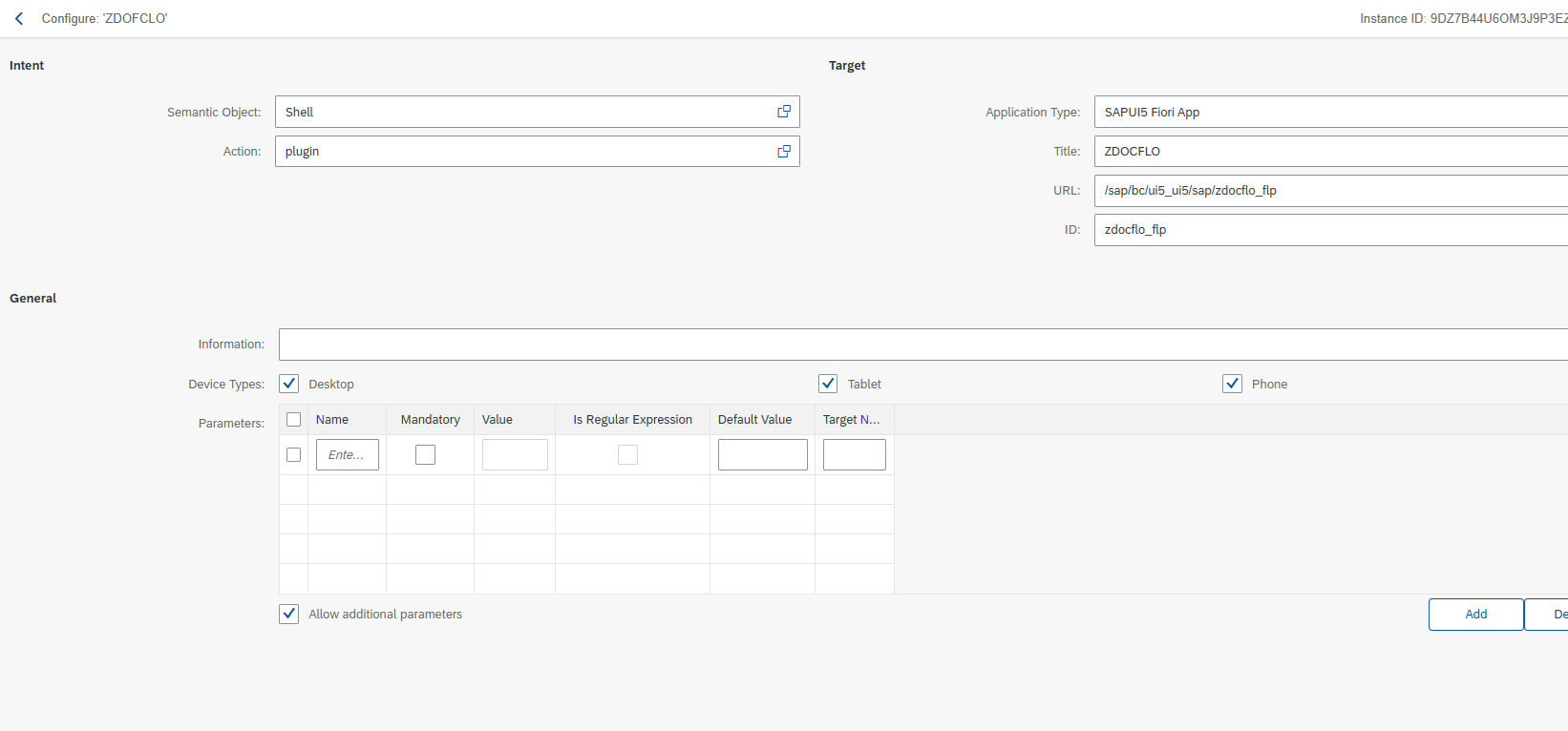
⚠️ Important: The target mapping ID must be zdocflo_flp.
Step 8: Assign the Catalog to Users
Assign the newly created catalog to the relevant users by adding it to PFCG roles of your choice, or by creating a new PFCG role for this purpose.
Step 9: Verify in the Fiori Launchpad
Open your Fiori Launchpad - you will see the Docflo chat plugin running in the bottom-right corner.
🎉 You're all set! The Docflo AI Agent is now available directly from your Fiori Launchpad.